KO-KR Windows 11 Business Editions Updated DEC 2021 x64 버전 설치 성공


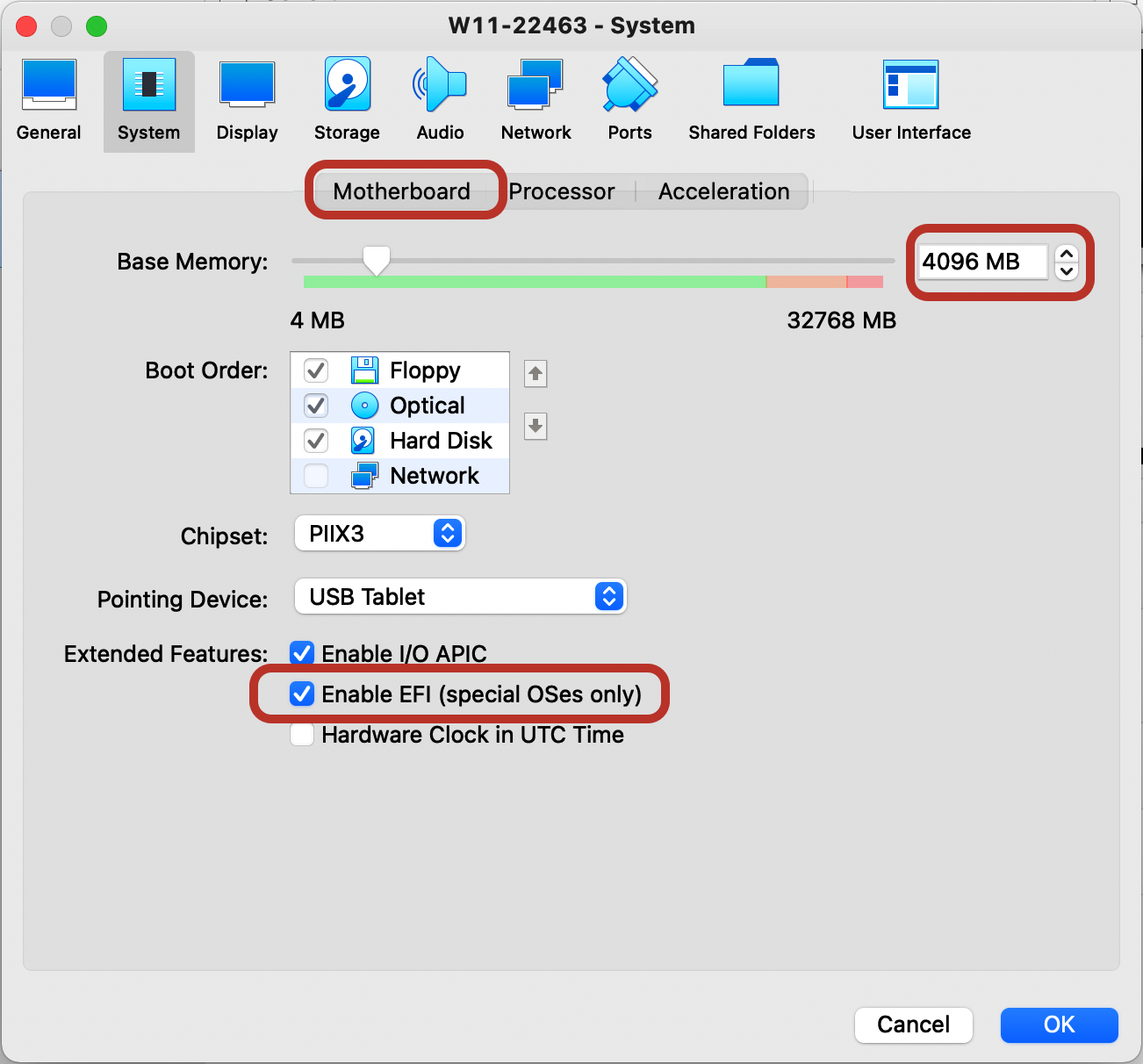
System - Motherboard

RAM: 4GB (minimum) - 8GB (minimum suggested)

EFI (Special OSes only) enabled
 

000.png


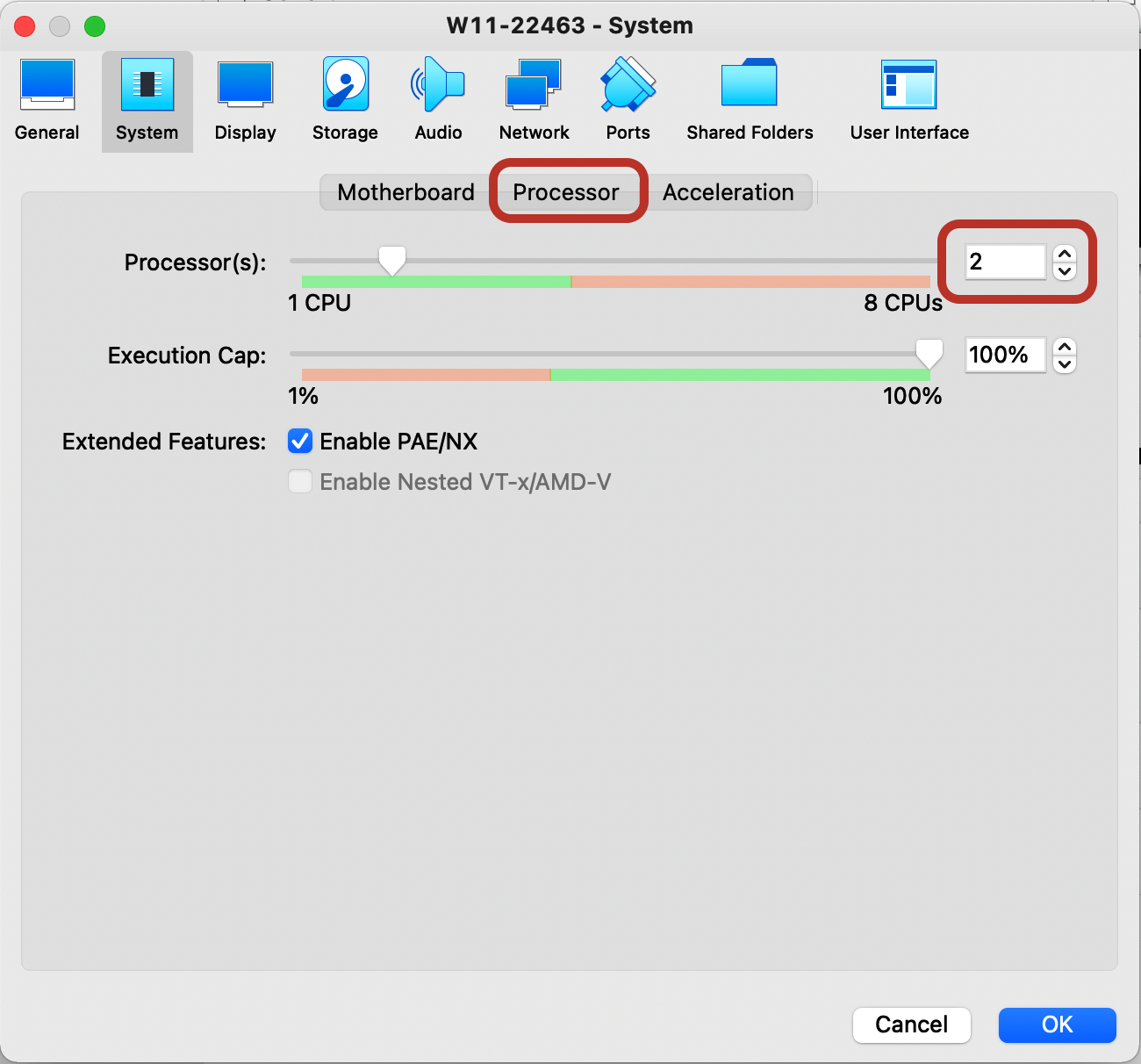
System - Processor

CPU: 2 (minimum)


001.png


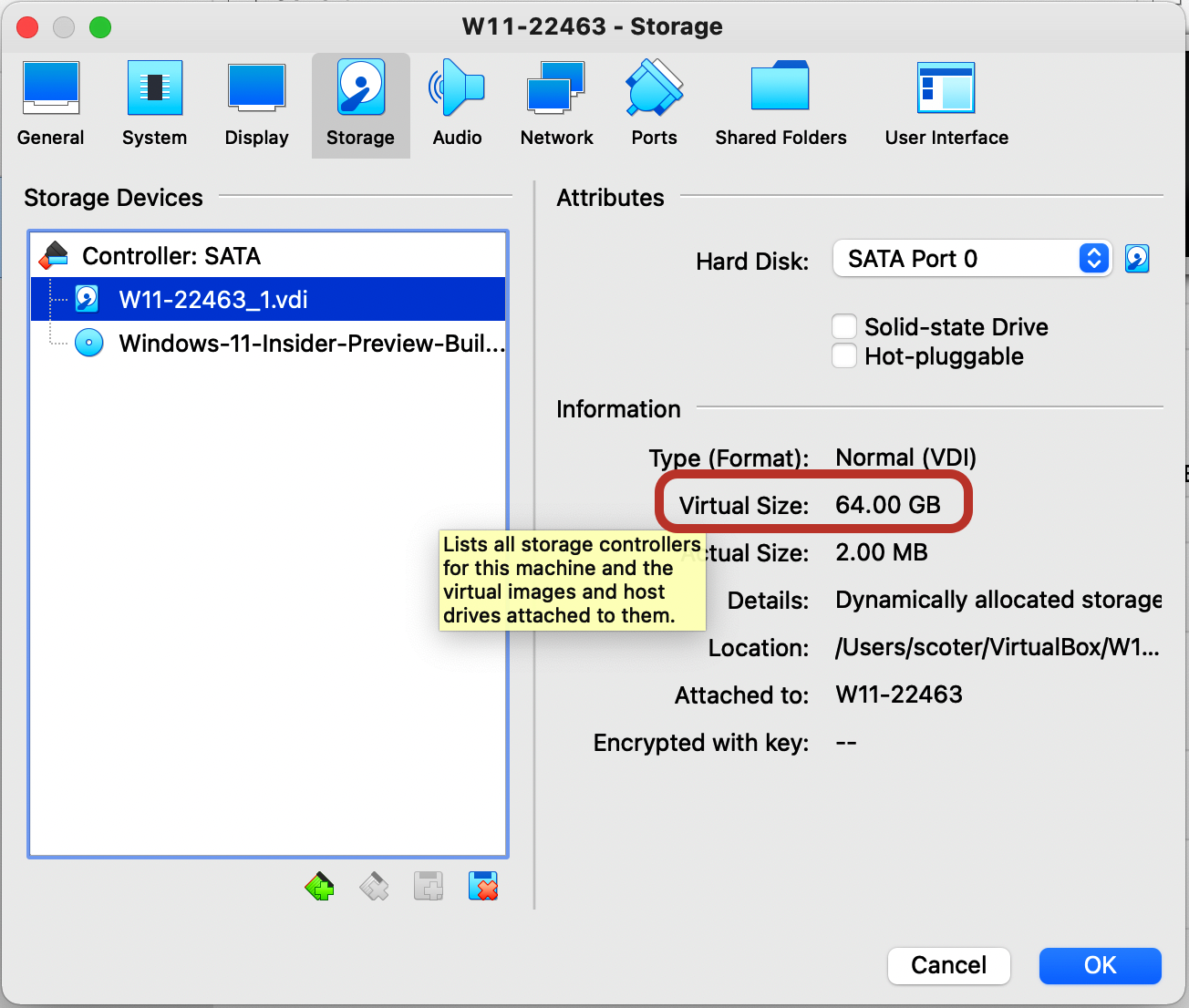
Storage

64 GB Virtual Disk (minimum size)
 

002.png


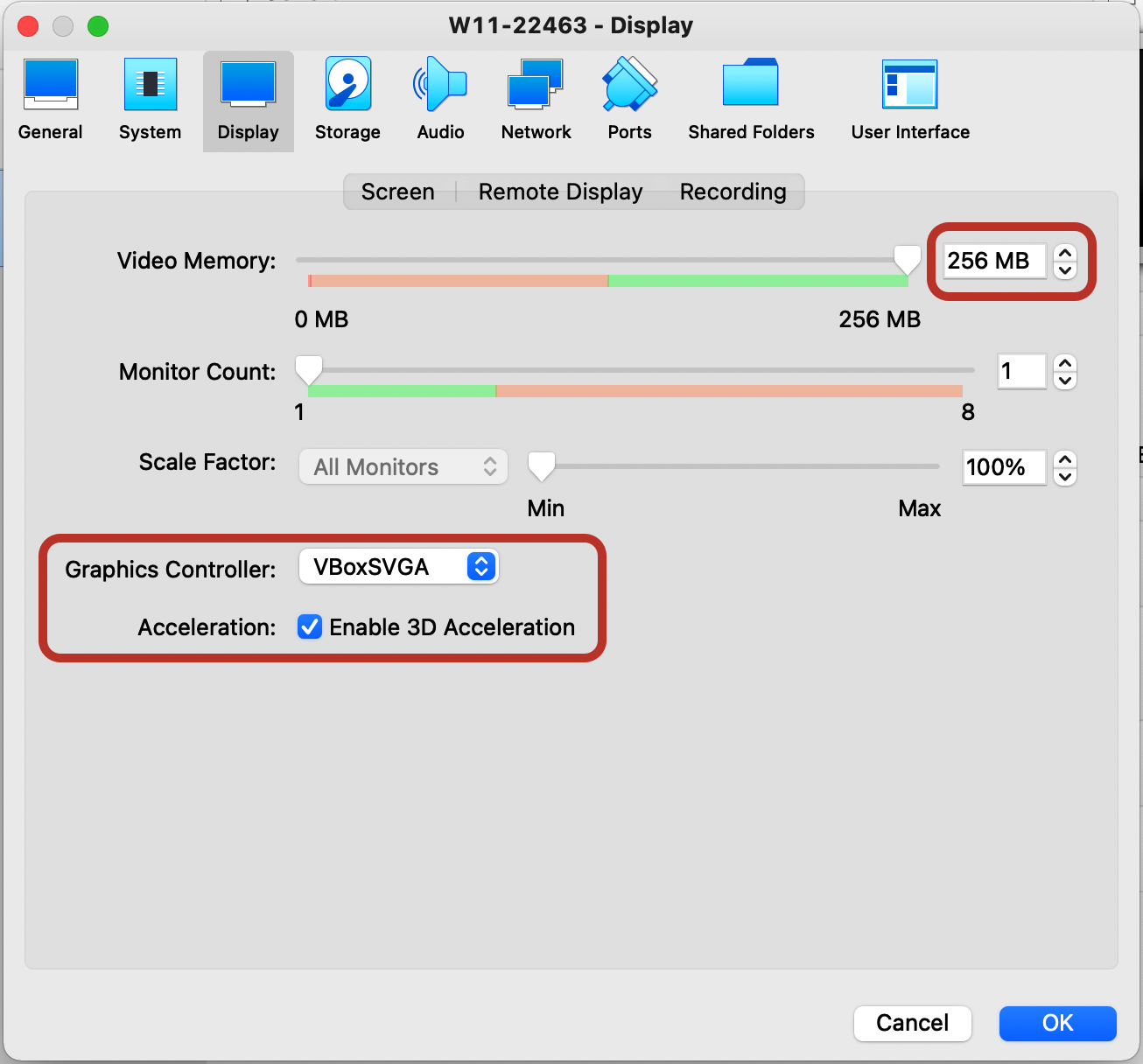
Display - Screen

Video Memory: 256MB

Graphics Controller: VBoxSVGA

Enable 3D Acceleration enabled
 

003.png


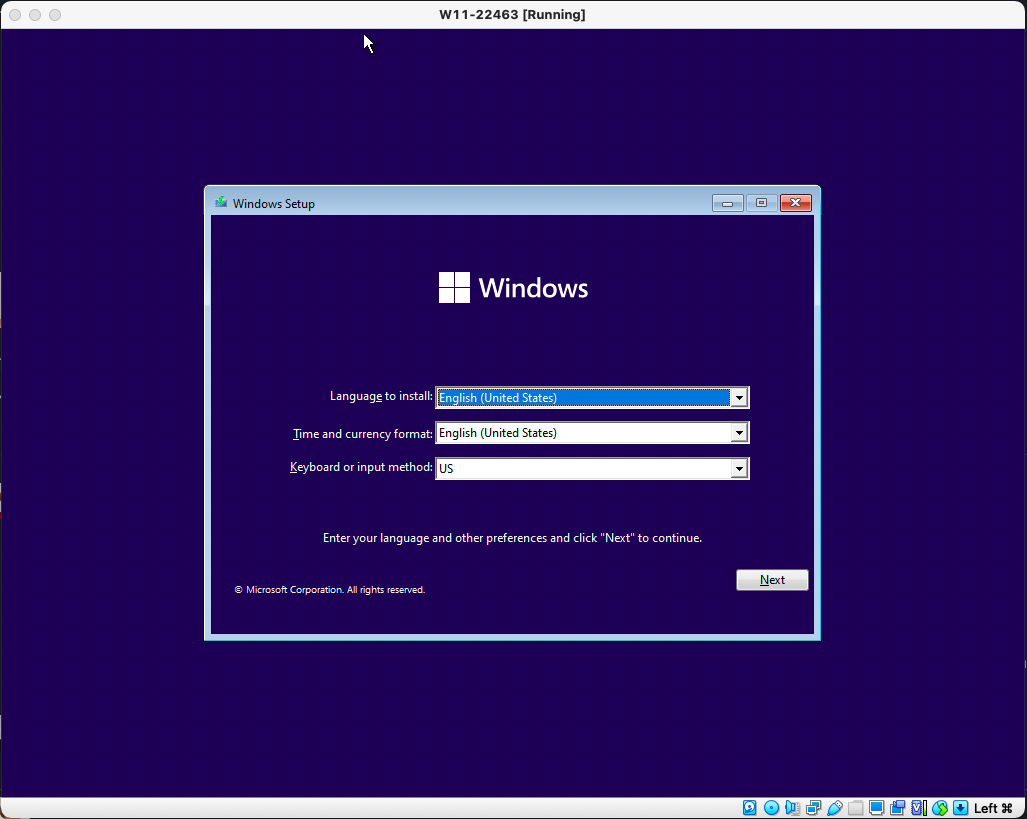
With those configuration options in-place and the "Microsoft Windows 11" ISO properly added as "virtual cd-rom" we can then start the installation process:
 

004.png


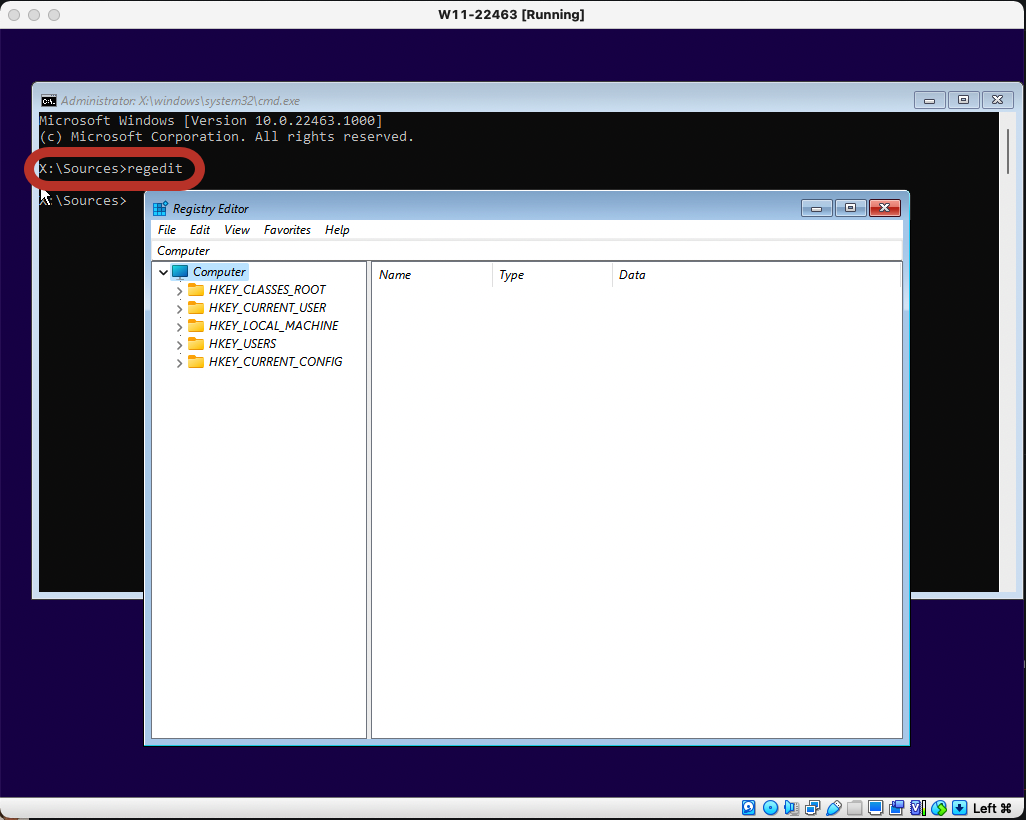
Click next to show-up the "Install now" button; when you see the installation button, press "Shift+F10" on your keyboard at the same time to launch a command prompt. At this command prompt, type "regedit" and press enter to launch the Windows Registry Editor.
 

005.png


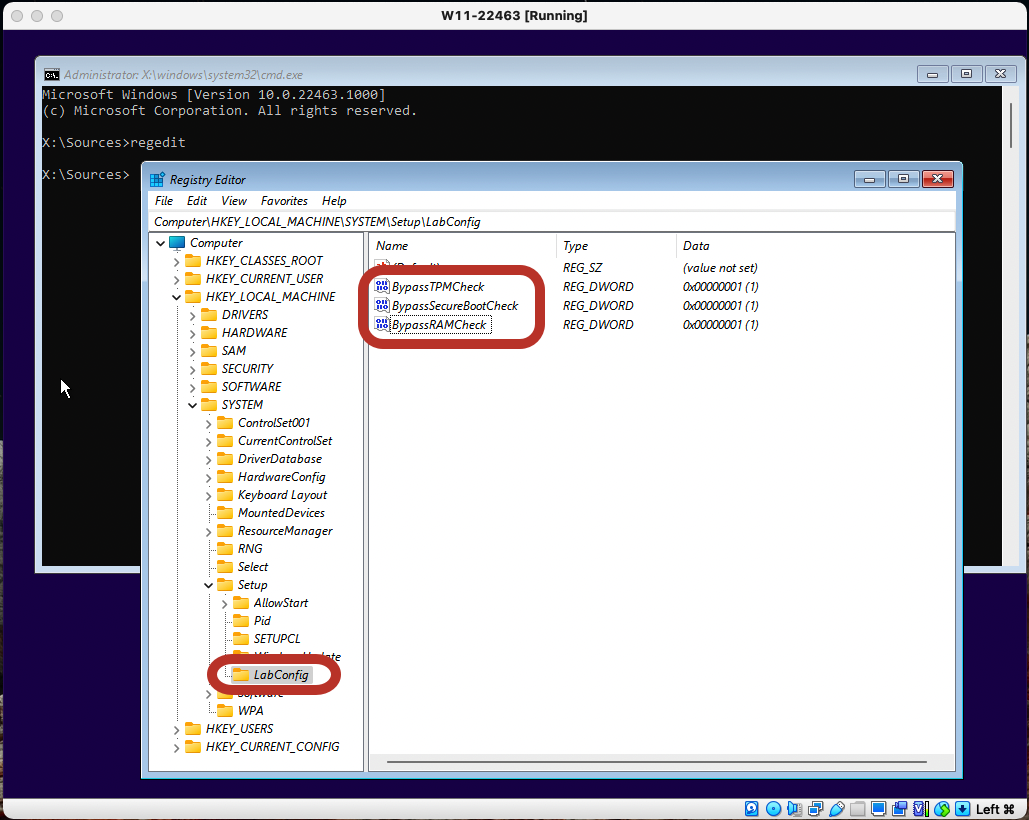
When the Registry Editor opens, navigate to "HKEY_LOCAL_MACHINE\SYSTEM\Setup", right-click on the "Setup" key and select "New => Key".


When prompted to name the key, enter "LabConfig" and press enter.


Now right-click on the "LabConfig" key and select "New => DWORD  (32-bit)" value and create a value named "BypassTPMCheck", and set its data to "1". With the same steps create the "BypassRAMCheck" and "BypassSecureBootCheck" values and set also their data to "1", so it looks like the following image.
 

006.png


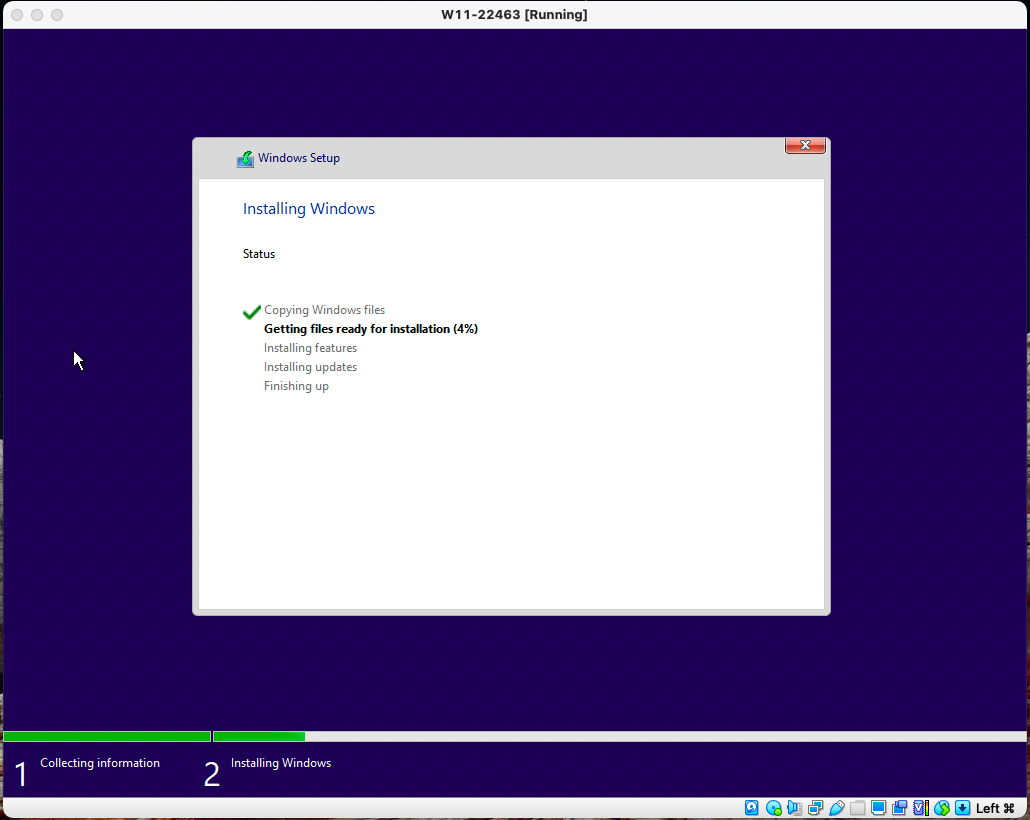
With those three values configured under the "LabConfig" key, close the "Registry Editor", and then type exit in the "Command Prompt" followed by enter to close the window. You can now click on the "Install now" button to proceed to get "Microsoft Windows 11" installed as a virtual-machine on top of VirtualBox.
 

007.png


번호 제목 sitelink1 글쓴이 날짜 조회 수
243 Windows 11 Pro 환경의 WSL2(Windows Subsystem for Linux 2)에서 X11(그래픽 앱)을 실행   황제낙엽 2026.01.06 2655
242 경로 관련 별칭(alias)   황제낙엽 2025.12.19 2543
241 macOS 에서 finder 로 숨김 디렉토리, 파일을 조회   황제낙엽 2025.09.26 1649
240 특정 폴더 제외하고 가장 최근에 생성된 폴더 이름 가져오는 shell file 만들기   황제낙엽 2025.07.28 2578
239 [Copilot] WSL2 Ubuntu 실행 방식과 차이점   황제낙엽 2025.06.09 2557
238 [Gemini] docker pull 로 다운받은 ubuntu 이미지를 portainer 로 실행하여 접속   황제낙엽 2025.06.02 2567
237 Windows 11 Pro -> WSL2 (Ubuntu) -> Docker -> Portainer   황제낙엽 2025.05.30 2714
236 윈도우 11 설치 USB 만들기 가이드 https://blog.naver.com/cjs0308cjs/223694056158  황제낙엽 2025.01.10 3985
235 [bard] docker로 실행한 container에 터미널로 접속   황제낙엽 2024.02.01 3662
234 [2023. 11. 6.] 데이터베이스, GUI 클라이언트 환경의 Docker Compose 모음 https://blog.pages.kr/2819  황제낙엽 2024.01.29 3814
233 Docker Compose 문법 정리 (YAML)   황제낙엽 2024.01.29 3374
232 Docker Compose 명령어(실행,중지,삭제) https://docs.docker.com/compose/reference/  황제낙엽 2024.01.28 3848
231 Docker Compose 에 대한 이해와 사용법에 대한 포스팅 모음 https://docs.docker.com/compose/gettingstarted/  황제낙엽 2024.01.26 4080
230 Kubernetes 와 Docker 의 관계   황제낙엽 2024.01.26 3028
229 docker 를 windows 에서 실행하는 방법 3가지 정리   황제낙엽 2024.01.23 3741
228 windows + docker 설치에 대한 포스팅 모음   황제낙엽 2024.01.22 3532
227 윈도우 10 실행키 입력 명령어 목록 (Windows + R) https://haenny.tistory.com/217  황제낙엽 2023.07.12 7542
226 윈도우 10 "원격 데스크톱"의 "컴퓨터 목록" 정보 저장 위치 (from Bing)   황제낙엽 2023.07.11 4003
225 compress this drive to save disk space (이 드라이브를 압축하여 디스크 공간 절약)   황제낙엽 2023.05.09 4214
224 명령어 모음   황제낙엽 2023.05.06 3655