
윈도우 Step by step on how to Configure multiple concurrent RDP clients to run SambaPOS (IPHONE ,IPAD, Galaxy tablet)
Here's a step by step guide on how to run multiple concurrent RDP sessions.
My Test system configuration:
Laptop running Windows 7 Enterprise (Windows Pro is recommended) - Main System
Other Devices (clients):
Iphone 3
Ipad
Galaxy Tab 3
Required Software Patch:
2X Client for Desktops, Mobile Devices - http://www.2x.com/rdp-client/
Patch/crack Required to enable-concurrent-multiple-RDP-sessions:
Windows 7 patch:
UniversalTermsrvPatch_20090425.zip (132.5 KB)
Windows 8/8.1 Patch:
termsrv.dll_patched-win8.zip (421.6 KB)
http://samarthparikh.blogspot.com.br/2008/10/enable-concurrent-multiple-rdp-sessions.html
Step 1: Configure Remote Settings
Go to Control Panel, System, Remote Settings
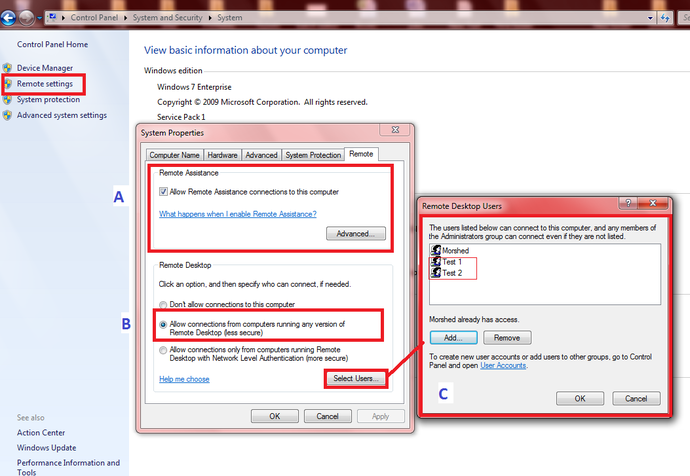
A. Select Allow Remote Assistance connections to this computer check box
B. Select Allow connections from computers running any version of Remote Desktop to allow people using any version of Remote Desktop or RemoteApp to connect to your computer. This is a good choice if you don't know the version of Remote Desktop Connection that other people are using, but it is less secure than the third option.
or
Select Allow connections only from computers running Remote Desktop with Network Level Authentication to allow people with computers running versions of Remote Desktop or RemoteApp with Network Level Authentication to connect to your computer. This is the most secure choice if you know that the people who will connect to your computer are running Windows 7 on their computers. (In Windows 7, Remote Desktop uses Network Level Authentication.)
C. Add Use Account for each RDP device.(in My example i have added Test 1 and Test 2.
Test 1 user account (standard user) will connect using Iphone
Test 2 user account (standard) will connect using IPAD
Morshed user account (Admin) will be configured on Galaxy Tab.
Step 2: Install Patch Required to enable-concurrent-multiple-RDP-sessions:
My system is Windows 7, so i'm going to configure Universal Termsrv.dll Patch for Windows 7.
Choose the corresponding patcher based on your Windows 7 :
For 32bit(x86): U**niversalTermsrvPatch-x86.exe**
For 64bit(amd64): UniversalTermsrvPatch-x64.exe
Require administrator rights. Right-click the exe file, select Run as Administrator.
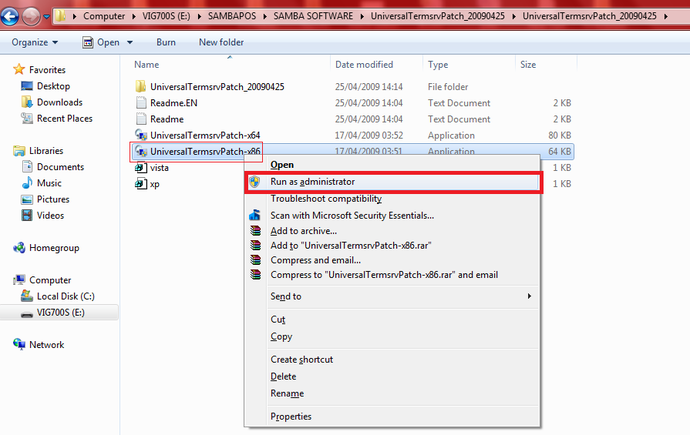
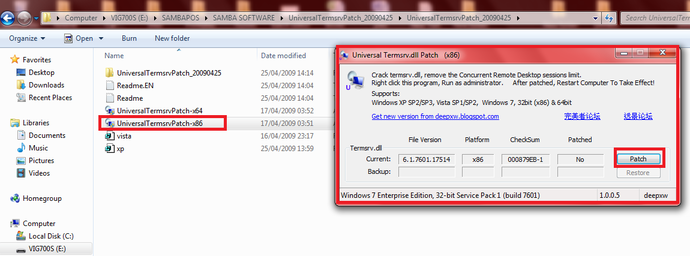
Click on Patch to Install
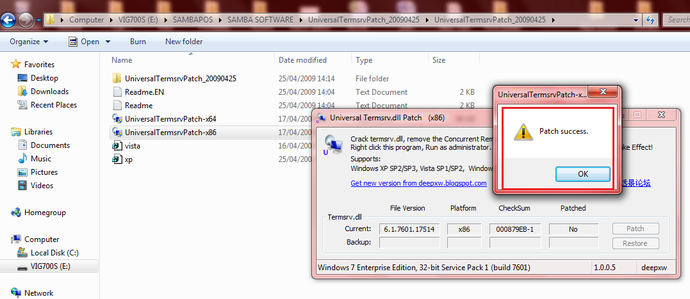
Click on OK
ClickYes to Restart- Installation complete.
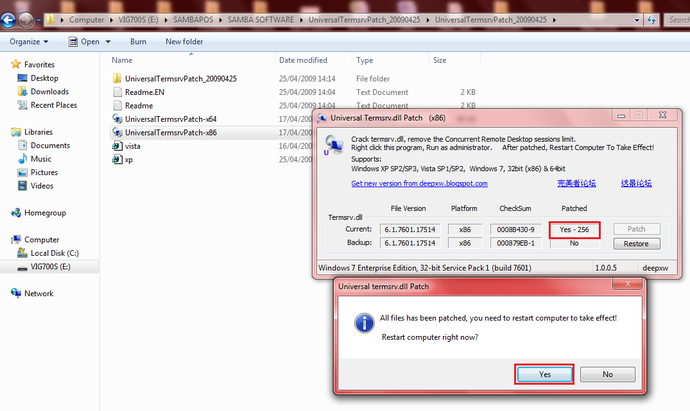
Note: If wanted to restore the original Termsrv.dll file you can run the Universal Termsrv.dll Patch utility and select restore.
Step 3. Install 2x Client on the client devices (IPAD, Iphone or any other tablet)
2X Client for Desktops, Mobile Devices - http://www.2x.com/rdp-client/
Follow the steps on below link on how to add a RDP Connection.
http://www.2x.com/docs/en/manuals/html/client-android/2XClientForAndroid.html
Additional usefull Information:
If you are using Terminal Names within SambaPOS - ie Terminal specific menus, etc, you need to make sure that you move the SambaSettings.txt file to the user path for SambaPOS for each RDP user. This is typically C:\Users{user profile}\AppData\Roaming\SambaPOS\SambaPOS4 If you don not do this, all RDP users will have the same Terminal Name.
You can file the App Path & User Path in Manage->Settings->Local Settings.
iPads (Apple devices) seem to hate Windows computer (NETBIOS) names.
Set a static IP address on the RDP server (so a restart doesn't set a new IP address), and connect using IP address instead of server name.