
핵심은 다음의 3단계
(1) detach the collection - 컬렉션을 detach한다
(2) delete the collection database - mssql 관리자 툴에서 db를 삭제한다
(3) delete the SharePoint site collection - 생략해도 별 상관없지만 가능하다면 삭제한다
하단의 내용은 본문임
You detach a team project collection when you want to perform a maintenance operation, such as moving or splitting a collection. Teams can’t access team projects or source code when you detach the collection.
You delete a collection when you no longer need the data stored in the team projects defined in the collection. The three steps to delete a collection are (1) detach the collection, (2) delete the collection database, and (3) delete the SharePoint site collection that supported the deleted collection.
Detach the collection
-
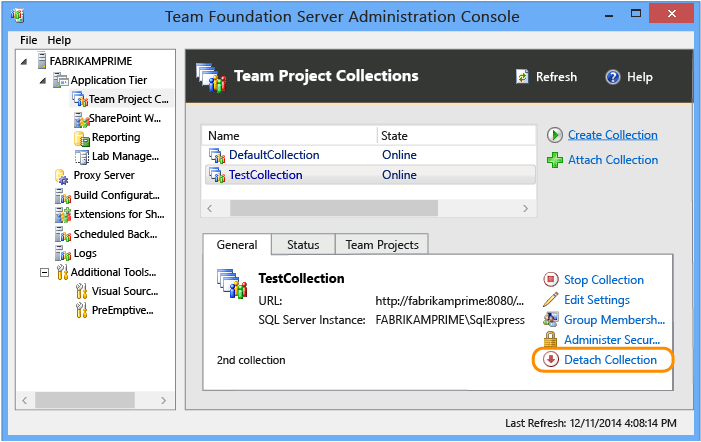
From the administration console, highlight the name of the collection that you want to delete, and then choose Detach Collection.
-
Follow the guidance provided by the Detach Team Project Collection Wizard.
(Optional) On the Provide a servicing message for the team project collection page, in Servicing Message, specify a message for users who might try to connect to projects in this collection.
-
When all the readiness checks have completed successfully, choose Detach.
On the Monitor the team project collection detach progress page, when all processes have completed, choose Next.
-
(Optional) On the Review supplemental information for this team project collection page, note the location of the log file.
Delete the database and the SharePoint site collection
-
Open SQL Server Management Studio, connect to the instance of the SQL Server Database Engine that hosts the collection database, and expand the instance.
Highlight the name of the collection database (by default, TFS_CollectionName), and then delete the database.
For more information, see How to: Delete a Database.
-
Open SharePoint Central Administration, and delete the site collection that supported the deleted collection.
For more information, see Delete a site collection in SharePoint 2013.
The team project collection no longer appears in the list of collections in the administration console.
